
You want AI running right inside your terminal. You probably tried Anthropic’s official Claude Code CLI. Then you hit the paywall.
Table of Contents
- ●Why MiniMax M2.5 makes sense
- ●Step 1: Install Node.js the right way
- ●Step 2: Generate your free API key
- ●Step 3: Install and configure the OpenCode CLI
- ●Step 4: Install the official Claude Code CLI
- ●Step 5: Edit the hidden configuration file
- ●Step 6: Build a real project
- ●Step 7: Advanced terminal workflow
- ●Handling complex context windows
- ●Advanced troubleshooting for the Claude CLI
- ●Pros and cons of this setup
- ●The Good
- ●The Bad
- ●Fixing common configuration errors
- ●Frequently asked questions
- ●Is MiniMax M2.5 safe to use for private codebases?
- ●Why is my API response so slow?
- ●Do I need to keep the OpenCode CLI running in the background?
- ●Can I use this on a Raspberry Pi?
- ●How many files can I give the agent at once?
Running official models burns through API credits fast. I watched a simple React refactor eat $3 in 10 minutes.
Most tutorials tell you to install Ollama and run giant models locally. That ends with your cooling fans screaming and your battery dying. You need 32 GB of unified memory just to load a 30 billion parameter model.
But your standard Macbook Air will freeze solid.
Other guides point you to cloud APIs like Nvidia NIM. You try to register. And Nvidia strictly blocks signups from several countries while demanding phone verification.
Their API chokes during peak traffic hours. You hit enter on a prompt and sit there waiting for a timeout error.
So we bypass the hardware limits of Ollama and the geo-restrictions of Nvidia NIM. You will learn exactly how to use Claude Code for free right now. We will wire up a free API endpoint powered by the MiniMax M2.5 model.
Why MiniMax M2.5 makes sense
MiniMax M2.5 competes aggressively with Claude 3.5 Sonnet on coding benchmarks. I use it daily to write Python scripts and debug Go servers. And you get it for zero cost via the OpenCode developer platform.
OpenCode handles the heavy lifting on their server clusters. They adjust limits actively based on server traffic. You don’t need to provide a phone number.
It works globally. So you can write code with this API from anywhere.
If you prefer graphical interfaces over terminal tools, you can build visually. Read our guide on how to build a web app with Cursor AI to see how visual AI editors compare to terminal commands.
Let us look at how this setup compares to your other options.

| Provider Setup | Hardware Required | Account Verification | Cost |
|---|---|---|---|
| Official Anthropic API | None (Cloud) | Credit Card Required | Pay per token |
| Local Ollama | Heavy (16 GB+ RAM, GPU) | None | Free |
| Nvidia NIM API | None (Cloud) | Phone Number (Strict) | Free Tier (Rate Limited) |
| OpenCode (MiniMax) | None (Cloud) | Google Login Only | Free |
Step 1: Install Node.js the right way
Your computer needs Node.js. Both the OpenCode CLI and the Claude Code CLI rely on it. Verify your current version by typing node -v in your terminal. You must run version 18 or higher.
Don’t download the installer directly from the website. You will hit permission errors later. You should use a version manager.
If you use a Mac, open your terminal and install Homebrew. Then run brew install nvm. If you use Windows, open PowerShell and run winget install nvm-windows.
Once you install the version manager, type nvm install 20. This pulls down the correct Node files. Type nvm use 20 to lock it in and restart your terminal.
Step 2: Generate your free API key
You need a specific key to route your requests through the free MiniMax endpoint. Go to the OpenCode website. Click on the “Zen” tab in the top navigation bar. This is their dedicated hub for AI models.
Click the “Get Started with Zen” button. Log in with your Google account. The dashboard will load a list of available AI models.
You will see “MiniMax M2.5” listed with a “Free” badge. Navigate to the “API Keys” section on the left sidebar.
Click “Create API key”. Name it “Claude Terminal”. The platform will generate a long string of characters.
Copy this string immediately. Paste it into a blank notepad file. You can’t view this key again once you close the window.
Step 3: Install and configure the OpenCode CLI
Now we link your terminal to the OpenCode service. Create an empty folder on your desktop. Right-click that folder and open it in your terminal.
Run the following command.
npm install -g opencode-cliPress enter and watch the packages download. Type opencode and hit enter. The CLI interface will boot up.
Type /connect inside the OpenCode prompt. Use your arrow keys to select “OpenCode Zen”. The CLI will display a base URL and ask for your API key.
Paste the long string from your notepad and hit enter. Select “MiniMax M2.5 Free” from the model list. Test the connection by typing “Write a python function to add two numbers”.
If the model replies with code, your API tunnel works. Close this terminal instance.
Step 4: Install the official Claude Code CLI
You have the brain. Now you need the hands. You must install the official Anthropic tool before we edit its configuration.
Go to your terminal. Run npm install -g @anthropic-ai/claude-code. This command pulls the official binaries directly from the npm registry.
It takes about 2 minutes. Verify the installation by typing claude help. A list of commands will populate your screen.
This confirms the software is sitting correctly on your hard drive. If you are comparing AI options for your daily workflow, read our deep dive on ChatGPT vs Claude in 2026. Anthropic’s tools dominate the coding space right now.
Step 5: Edit the hidden configuration file
We must manually point the Claude CLI away from Anthropic’s expensive servers. We will redirect it to your free MiniMax endpoint.
We do this by editing a hidden JSON file. You need to find the .claude folder on your computer.
- Windows users: Open File Explorer. Navigate to your C: drive. Open the “Users” folder, then open your specific username folder. Look for a folder named
.claude. - Mac and Linux users: Open your terminal and navigate to your root directory. Use the command
cd ~followed byls -ato view hidden folders. You will see the.claudedirectory.
Inside that folder, locate a file called settings.json. Open this file using VS Code or Notepad. Delete everything and paste this exact structure:
{
  "anthropic_base_url": "https://opencode.ai/zen/v1",
  "anthropic_model": "minimax-m2.5-free",
  "anthropic_api_key": "PASTE_YOUR_API_KEY_HERE"
}
Replace the placeholder text with your actual API key. Pay close attention to the quotation marks and commas. A single missing comma breaks the JSON file.
The terminal tool will crash immediately on startup if you format this poorly. Save the file and close your text editor.
Step 6: Build a real project
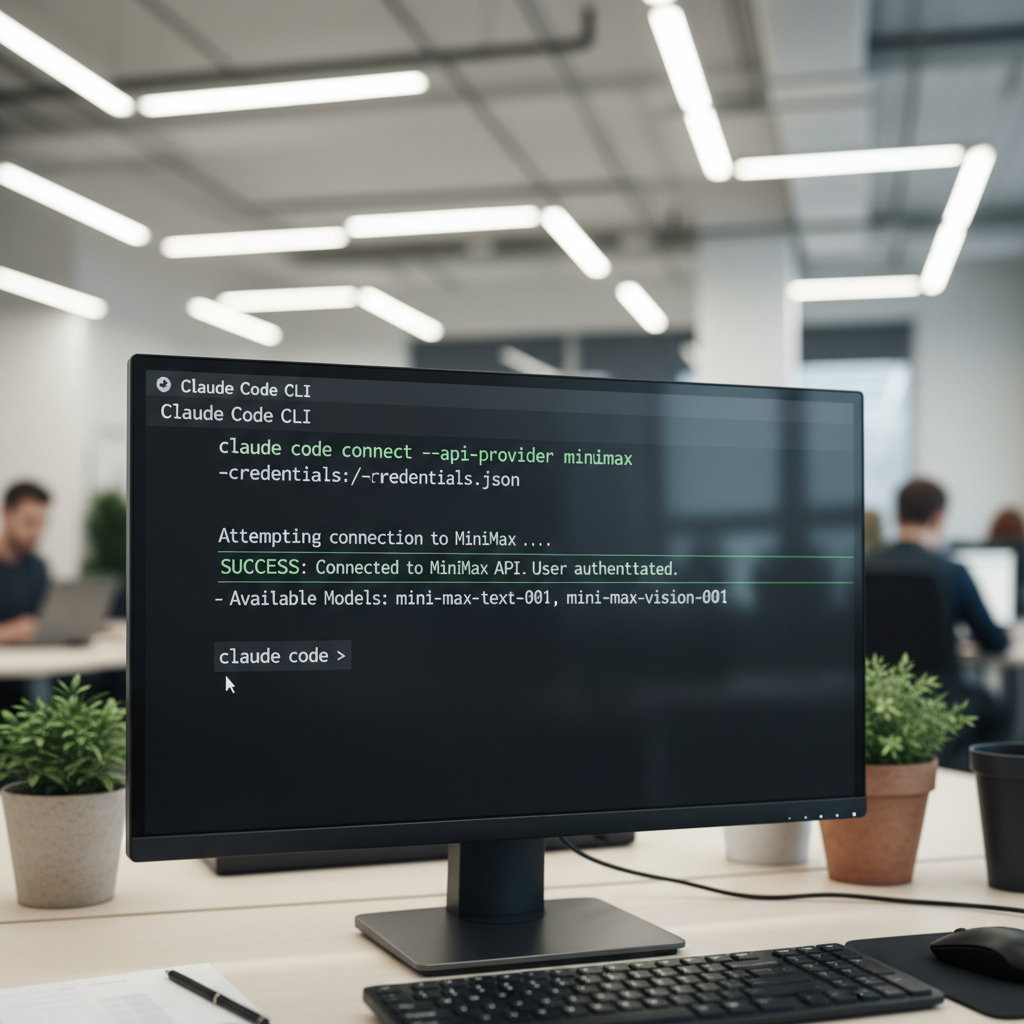
Let us test this in a real development scenario. Navigate back to your empty coding folder in the terminal. Type claude and hit enter.
The interface will warn you about a custom API key. Type “Yes” and hit enter. Look at the bottom of the terminal window.
The active model will read “MiniMax M2.5”. Type this exact prompt: “Create a fastify web server in Node.js that serves a simple HTML page. Include a package.json file.”
The agent will read your prompt. It will write the server.js file, populate the package.json, and even run npm install for you. You just watch the terminal output stream by.
Open your web browser and go to localhost:3000. You will see your new webpage running. You just built a functional web server using an AI agent for zero dollars.
If you want to push your newly generated applications live, check out our tutorial on how to deploy vibe coded apps using Dokploy.
Step 7: Advanced terminal workflow
You have the agent running. Now you need to control it efficiently. The Claude CLI includes several slash commands to manage your workflow.
Type /compact when your conversation gets too long. The agent will summarize the history and clear the context window. This keeps the MiniMax model responding quickly.
Type /clear to wipe the slate entirely. Do this when you switch from writing backend logic to styling frontend CSS. The AI doesn’t need your SQL queries to write Tailwind classes.
Use the /add command to manually force files into the context window. Type /add src/components/Button.jsx to make the agent read that exact file. This prevents the model from blindly guessing your prop structures.
Handling complex context windows
Large codebases break AI models. If you ask MiniMax to refactor a massive monolithic application, it will fail. You must manage the context window aggressively.
Don’t run the CLI from the root of a monorepo. Navigate directly into the specific microservice folder before booting Claude. This physically stops the agent from reading irrelevant backend files when you just want to update a frontend component.
Use an .anthropicignore file. Create this file in your project root. Treat it exactly like a .gitignore file.
Add your node_modules, .next, and dist folders to this file. Add your package-lock.json and any heavy .csv data files. The agent will skip these directories completely.
This saves thousands of tokens and stops the MiniMax endpoint from timing out. I once watched an agent try to read a 50 MB SQL dump file. The terminal crashed immediately.
Advanced troubleshooting for the Claude CLI
Sometimes the CLI gets stuck in a read-loop. The agent will read a file, output a plan, and immediately read the same file again. This happens when the AI gets confused by complex TypeScript interfaces.
Press Ctrl + C immediately to kill the active process. Don’t let it burn through the free server requests. Type /clear to dump the broken context.
Break your request down into smaller chunks. Ask the agent to generate the types first. Once you verify the types, ask it to write the business logic.
You might also see a 429 Too Many Requests error. This means the OpenCode Zen server is saturated. Wait 2 full minutes. The server queue will clear, and your next prompt will go through.
Pros and cons of this setup
The Good
- Completely free to use without usage billing.
- No heavy local hardware or GPU required.
- Bypasses Nvidia NIM country restrictions.
- Bolts directly into the official Claude CLI.
- Handles 10,000 token context windows easily.
The Bad
- Requires editing hidden system configuration files.
- Traffic queuing causes occasional delays.
- MiniMax M2.5 occasionally drops variables in large React components.
- Can’t read local image files like Claude 3.5 Sonnet.
Fixing common configuration errors
If the Claude CLI crashes immediately upon startup, your settings.json file is broken. Open the file again. Check for missing quotation marks around the base URL or API key.
Remove any trailing commas on the last line of the JSON object. JSON parsing is strictly unforgiving.
If the CLI boots but tells you the API key is invalid, verify your clipboard data. Sometimes extra spaces get copied by accident. Delete the key from your settings file and paste it again carefully.
If the terminal returns an EACCES permission error during npm install, Node can’t write to your system folders. This happens when you install Node without a version manager.
Run the command with sudo on a Mac. On Windows, open PowerShell as an Administrator and retry the installation.
Frequently asked questions
Is MiniMax M2.5 safe to use for private codebases?
OpenCode manages these requests on external servers. You shouldn’t pass highly sensitive company data, hardcoded passwords, or private SSH keys through free proxy APIs. Use it for standard web development, learning, and open-source projects. I keep my AWS credentials strictly out of my terminal history.
Why is my API response so slow?
OpenCode Zen manages usage limits actively. Thousands of users hit the server at the exact same moment. The platform queues the requests. This causes temporary latency. Wait 60 seconds and run your prompt again. You trade speed for free access.
Do I need to keep the OpenCode CLI running in the background?
No. You only use the OpenCode CLI to generate and verify your initial connection. Once you update the Claude settings.json file, the Claude CLI talks directly to the OpenCode URL endpoint. You can uninstall the OpenCode CLI completely.
Can I use this on a Raspberry Pi?
Yes. The Claude CLI requires Node.js. Node runs natively on ARM architecture. You can SSH into your Raspberry Pi and run the exact same installation commands. You get a coding agent running on a $35 computer.
How many files can I give the agent at once?
MiniMax M2.5 handles roughly 30,000 tokens comfortably. This equals about 15 standard code files. If you point the agent at a massive legacy codebase, it will lose context. Keep your prompts scoped to specific directories.
Setting up AI tools shouldn’t require buying a $3,000 laptop or begging a cloud provider to whitelist your country. By routing the official terminal app through the OpenCode API, you get full access to a coding assistant without the heavy financial barrier.
Get Your Free API Key on OpenCode

Written by Mangaleswaran
Mangaleswaran is the founder of AIZnap (aiznap.com) and a dedicated AI content creator. With a background in blogging and technology, he has a deep passion for making artificial intelligence accessible to everyone. He specializes in breaking down complex AI tools, tutorials, and updates into simple, practical guides that anyone can follow. Whether you are a complete beginner or someone looking to use AI to build websites, apps, or grow your online presence — Mangaleswaran's content is designed to help you take action with confidence.
View all posts