

Meta charges businesses for every WhatsApp message you send. If you build a side project or run a small community in 2026, paying Twilio fees for simple OTP logins burns cash quickly. You get punished for growing your user base.
Table of Contents
- ●The system architecture
- ●Core components
- ●Step 1: Preparing your system requirements
- ●Step 2: Setting up the Google Sheets database
- ●Step 3: Installing Open WA
- ●Step 4: Connecting your WhatsApp account
- ●Important security warning
- ●Step 5: Tunneling your local server to the web
- ●Step 6: Writing the fetch request
- ●Adding rate limits to stop spam
- ●The VPS catch: why localhost fails in production
- ●Cost comparison: official APIs vs. open source
- ●Pros and cons of this architecture
- ●Advantages
- ●Disadvantages
- ●Handling common errors
- ●Frequently asked questions
- ●Will WhatsApp ban my number for sending OTPs?
- ●Do I absolutely need a VPS?
- ●Can I use this method for marketing blasts?
- ●Why use Google Sheets instead of a normal database?
- ●Final thoughts
You can bypass paid APIs entirely. You can wire up your own WhatsApp number as a gateway. It costs zero dollars. You just combine Google Sheets, Google Apps Script, and an open-source tool called Open WA.
We’ll set up the database, connect the gateway, and secure the system from scratch. And you can use the best AI coding assistants to write the frontend HTML for your login page.
The system architecture
Before typing any code, you need to understand how these parts talk to each other. We are building a three-tier system.
First, the user visits your login page and enters their phone number. That page sends a JSON request to your backend. Second, your backend is a Google Apps Script bolted onto a Google Sheet. The spreadsheet acts as your database. It stores the generated 6-digit OTPs and timestamps.
Finally, the Apps Script pings your local Open WA server. This local server physically types and sends the WhatsApp message from your connected phone.

Core components
- Database: Google Sheets and Apps Script
- API gateway: Open WA (Node.js)
- Hosting (Optional but Recommended): Hostinger VPS
- Tunneling: Ngrok or Bob.pub
Step 1: Preparing your system requirements
You need specific developer tools installed on your machine. Open your terminal and check your current versions.
You need Node.js to run the local server. You also need Git to clone the repository. Open PowerShell or your Mac terminal and run these commands:
npm -v
git –version
If the terminal returns version numbers like v20.11.0, you are ready. If it throws a command not found error, download and install Node and Git from their official websites.
Step 2: Setting up the Google Sheets database
Create a brand new Google Sheet. Name it “WhatsApp Auth DB”. Create two tabs at the bottom: “Users” and “OTP_Logs”.
In the “Users” tab, create columns for Phone Number, Username, and Created Date. In the “OTP_Logs” tab, create columns for Phone Number, OTP Code, Expires At, and Status.
Click on Extensions then Apps Script. This opens the browser-based code editor. Delete the default `myFunction` block. You write a `doPost(e)` function here to catch incoming POST requests from your frontend login page.
When a user types their number and clicks ‘Send Code’, the browser sends a JSON payload to this script. Your `doPost(e)` function catches the event parameter `e`. It parses the payload using `JSON.parse(e.postData.contents)`. It extracts the user’s phone number.
Next, you generate the OTP. Use `Math.floor(100000 + Math.random() * 900000)`. This guarantees a strict 6-digit integer. You append a new row to your OTP_Logs sheet using `sheet.appendRow([phoneNumber, otp, expirationTime, “Pending”])`.
Once you save the data, the script makes a URL Fetch call to your Open WA server. We’ll get to that specific webhook URL in step 5. For now, hit the Deploy button in the top right corner of the editor. Select “New deployment”. Choose “Web app”. Set the access level to “Anyone”.
Google gives you a long Web App URL. Save this URL in a notepad. Your frontend HTML needs it to send the initial login request. You can use AI tools to generate the exact Apps Script syntax. For a deep dive on structuring this, read our guide on how to build an AI app with Google Sheets.
Step 3: Installing Open WA
Open WA links your Node.js backend to the WhatsApp Web protocol. It boots up a headless Chromium browser instance. It literally logs into WhatsApp Web in the background without drawing a window on your screen.
Open your terminal. Navigate to your projects folder. Run the clone command from the GitHub repository:
cd open-wa
npm install
The `npm install` command downloads hundreds of megabytes of dependencies. This includes Puppeteer. Puppeteer is the library that controls the invisible Chromium browser.
Once the installation finishes, type `npm start`. The terminal spins up the server. It reads the local configuration files. It spits out a local URL. You usually see `http://localhost:3000`. Open that exact address in your browser.
You’ll see the Open WA dashboard. This interface lets you manage active phone sessions. It logs incoming webhook messages. It provides a visual dashboard for your gateway.
Step 4: Connecting your WhatsApp account
On the Open WA dashboard, look for the Sessions section. Click “Create New Session”. Hit Start.
The system generates a QR code on your screen. This is the exact same QR code you see when logging into standard WhatsApp Web.
Open WhatsApp on your phone. Tap Linked Devices. Scan the QR code. Your terminal will print a “Connected” status.
Open WA generates a Session ID. Copy this long alphanumeric string. Your Google Apps Script needs this ID to route messages to the correct phone.
Important security warning
Never use your primary personal phone number for production apps. WhatsApp actively bans numbers for automated spam. Buy a cheap 5 dollar secondary SIM card specifically for this gateway. Put it in an old phone. Connect it to Wi-Fi. Leave it plugged into a wall charger.
Step 5: Tunneling your local server to the web
You have a massive networking problem right now. Google Apps Script lives on Google servers. Open WA lives on your local laptop. Google can’t send an HTTP POST request to `localhost`. Localhost only exists inside your machine.
You must expose your local port 3000 to the public internet. You use a tunneling service. Ngrok is the industry standard for this task. Bob.pub is a free alternative.
Install ngrok via your terminal. Authenticate it using your free account token. Then run this command:
Ngrok generates a public URL like `https://a1b2c3d4.ngrok.app`. Copy this exact URL.
Go back to your Google Apps Script editor. Find your configuration variables at the top of your script. Paste this ngrok URL as your `OPEN_WA_BASE_URL`. Paste your Open WA Session ID into the script. Save the file. Deploy the script again to push the new variables live.
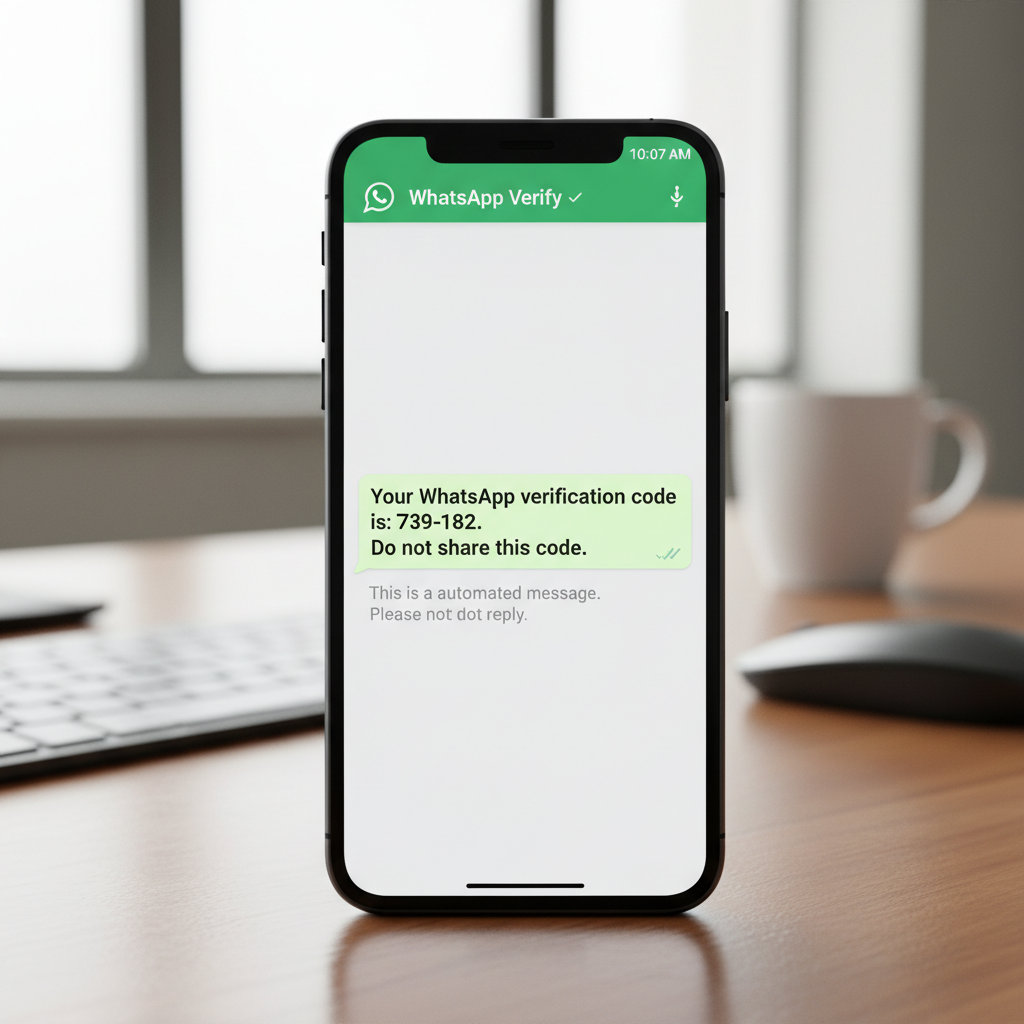
Now your data flows in a straight line. The user requests an OTP on the frontend. Google Apps Script catches it and sends a payload to your ngrok URL. Ngrok routes it through the internet to your laptop. Open WA receives it and pushes the message through your linked phone.
Step 6: Writing the fetch request
Your Google Apps Script must physically push the message payload to your laptop. Open WA requires a specific JSON format to route the text.
Inside your `doPost` function, you build a payload object. You specify the target phone number. You append `@c.us` to the end of the number. This is the internal format WhatsApp uses to identify standard user accounts. You format the message text.
Your payload code looks like this:
“chatId”: phoneNumber + “@c.us”,
“text”: “Your login code is: ” + otp
};
You configure the HTTP options. You set the method to `post`. You set the content type to `application/json`. You pass the payload through `JSON.stringify()`.
You wrap this in a `UrlFetchApp.fetch()` call. You target the `/api/sendText` endpoint on your ngrok URL. You include your Session ID in the headers for authentication.
If the fetch call succeeds, Open WA logs a 200 OK status in your terminal. You hear the sent message chime on your linked phone. The user receives the 6-digit code instantly.
Adding rate limits to stop spam
Trolls will find your login page. They write scripts to request thousands of OTPs a minute. This crashes your Node server. It also gets your WhatsApp number banned instantly by Meta.
You build rate limits directly into Google Sheets. Before generating a new OTP, your Apps Script must check the “OTP_Logs” sheet for recent activity.
You read all the data in the sheet using `sheet.getDataRange().getValues()`. You filter the array for the requested phone number. You look at the timestamps. If the user requested an OTP in the last 60 seconds, you reject the request. You return an HTTP 429 status code back to the frontend.
You also limit daily requests. Count how many rows the phone number occupies from the current calendar date. If the count exceeds 5, you block them for 24 hours.
This database logic saves your SIM card from automated spam filters. It costs zero compute power because Google servers handle the math before hitting your local laptop.
The VPS catch: why localhost fails in production
Testing this on your laptop works well for an afternoon. But the moment you close your laptop lid, your Open WA server shuts down. The ngrok tunnel collapses. Your users can’t log in.
You must deploy Open WA to a Virtual Private Server (VPS). A VPS runs 24 hours a day in a dedicated data center. Hostinger offers cheap unmanaged Ubuntu VPS plans for 5 dollars a month.
You buy the server. You get a static IP address and a root password. You open your terminal and SSH into the machine using `ssh root@your-server-ip`.
Once inside the Linux environment, you run the exact same installation steps. You install Node.js and Git using `apt-get`. You clone the Open WA repository. You run `npm install`.
If you close your SSH connection, standard node processes die. You install PM2 to keep the server running in the background. PM2 is a production process manager for Node.js apps.
You start the server by typing `pm2 start index.js –name “whatsapp-api”`. PM2 keeps the server alive forever. It restarts the app automatically if the server reboots.
You link a permanent domain name to your VPS IP address. You ditch ngrok completely. Your Google Apps Script now talks directly to your permanent VPS domain.
If you prefer standard web app deployments over VPS management, you can read our guide on how to deploy a Claude code web app or how to deploy vibe coded apps for alternative hosting setups. But for Open WA specifically, a standard Ubuntu VPS works best.
Cost comparison: official APIs vs. open source
Let’s look at the actual numbers. Assume you have 1000 active users. They log in 5 times a month. You send 5000 OTP messages. Here is how the costs break down.
| Service | Setup Cost | Cost per Message | Monthly Cost (5k msgs) |
|---|---|---|---|
| Twilio Verify (WhatsApp) | $0 | ~$0.05 (varies by region) | $250.00 |
| Meta Official API | $0 | ~$0.03 (utility tier) | $150.00 |
| Open WA + VPS | ~$5 (SIM Card) | $0.00 | $4.00 (VPS server cost) |
Pros and cons of this architecture
Advantages
- Zero cost per message sent.
- Google Sheets provides an accessible, visual database.
- No restrictive business verification processes with Meta.
- Full control over the message formatting and branding.
Disadvantages
- High risk of WhatsApp banning the sending number.
- Requires manual server maintenance for the VPS and tunnels.
- Slower sending speeds compared to paid APIs.
- Lacks official support SLAs if something breaks.
Handling common errors
During setup, you will hit a few roadblocks. Here is how to fix them quickly.
Session Not Found: This happens when WhatsApp disconnects your linked device. Meta forces disconnects occasionally for security. Open your phone. Go to Linked Devices. Remove the old session. Scan a new QR code from the Open WA dashboard. Update the Session ID in Google Sheets.
DNS Error / Connection Refused: Google Apps Script can’t reach your Open WA tunnel. Your ngrok process crashed. Restart the tunnel command in your terminal. Copy the new URL. Paste the new base URL in Apps Script.
Slow OTP Delivery: Google Sheets has a read and write limit. If 50 users request an OTP at the exact same second, Apps Script queues the requests. Some will drop. The Google Sheets API processes roughly 2 writes per second reliably.
If your app goes viral, you must abandon Google Sheets. You rewrite your backend to use PostgreSQL or Supabase. Open WA handles the message volume easily. The bottleneck is always the spreadsheet.
Puppeteer Crash: Sometimes the headless browser consumes too much VPS memory. The Linux server kills the process. You fix this by upgrading your VPS to 2GB of RAM. You also configure PM2 to restart the app when memory usage exceeds 1.5GB.
Frequently asked questions
Will WhatsApp ban my number for sending OTPs?
Yes. If you send hundreds of messages an hour to users who don’t have you saved in their contacts, Meta flags the behavior. Add rate limits to your Apps Script. Use a dedicated secondary phone number. Space out your tests.
Do I absolutely need a VPS?
For testing, your laptop works perfectly. For a public app, yes. A VPS ensures your server remains online 24 hours a day. Users can log in at 3 AM while you sleep.
Can I use this method for marketing blasts?
Technically yes. Practically no. Bulk messaging random contacts through a linked device triggers a permanent ban within minutes. Keep this restricted strictly to requested OTPs.
Why use Google Sheets instead of a normal database?
Google Sheets gives you a visual interface that requires zero configuration. You literally watch the OTPs populate in real-time. It acts as the perfect free backend for MVPs and small side projects.
Final thoughts
Building a free WhatsApp OTP gateway requires moving parts. You string together Google Sheets, Apps Script, Node servers, and public tunnels. But once you lock the pieces in place, you eliminate API costs entirely.
Start on your local machine today. Buy a spare SIM card. Scan the QR code and test the flow. When you see that first 6-digit number land on your phone, you realize how much control you have over your own backend infrastructure. You stop renting APIs. You own the gateway.
Learn How to Build AI Apps with Google Sheets

Written by Mangaleswaran
Mangaleswaran is the founder of AIZnap (aiznap.com) and a dedicated AI content creator. With a background in blogging and technology, he has a deep passion for making artificial intelligence accessible to everyone. He specializes in breaking down complex AI tools, tutorials, and updates into simple, practical guides that anyone can follow. Whether you are a complete beginner or someone looking to use AI to build websites, apps, or grow your online presence — Mangaleswaran's content is designed to help you take action with confidence.
View all posts