

Email eats your time. You log in at 8 AM. You start sorting through Jira notifications, urgent client requests, and SaaS newsletters. Suddenly, it’s 10 AM. You haven’t done any real work.
Table of Contents
- ●The 3 tiers of AI email automation
- ●Tier 1: Smart clients
- ●Tier 2: No-code agent workflows
- ●Tier 3: Hosted Python agents
- ●Top AI email management tools in 2026
- ●How to build a custom inbox sorter with Zapier and Claude
- ●The sorting prompt
- ●Automating draft replies
- ●Hosting your own email agent
- ●Pro tip: protect your API keys
- ●Privacy and security warnings
- ●Connecting the dots
- ●Frequently asked questions
- ●Can AI automatically reply to my emails?
- ●Is it safe to give AI access to my inbox?
- ●What is the best free AI email assistant?
- ●Final thoughts
But reading every single message yourself makes no sense. The technology exists to read, sort, and draft replies while you sleep. I spent the last 3 months testing AI email tools. I wired up large language models directly to my Gmail account.
I built custom webhooks. I broke my inbox exactly 4 times. Now, I have a system that handles 90% of my incoming messages.
This guide shows you exactly how to automate email management with AI. You’ll learn how to set up off-the-shelf tools. You’ll build custom sorting agents. And you’ll write prompts that actually sound like you.

The 3 tiers of AI email automation
You have 3 options for fixing your inbox. They range from simple SaaS apps to full custom code.
Tier 1: Smart clients
You replace your default Gmail or Outlook app with a third-party client. These apps scan incoming mail and summarize 50-message threads into 3 short bullets. They bundle newsletters together automatically.
They offer 1-click replies based on conversation context. If you want to use AI for everyday tasks without touching code, you start here.
And Shortwave and Superhuman dominate this space. They bolt LLMs directly onto your inbox API. You just sign in with Google and grant read permissions.
Tier 2: No-code agent workflows
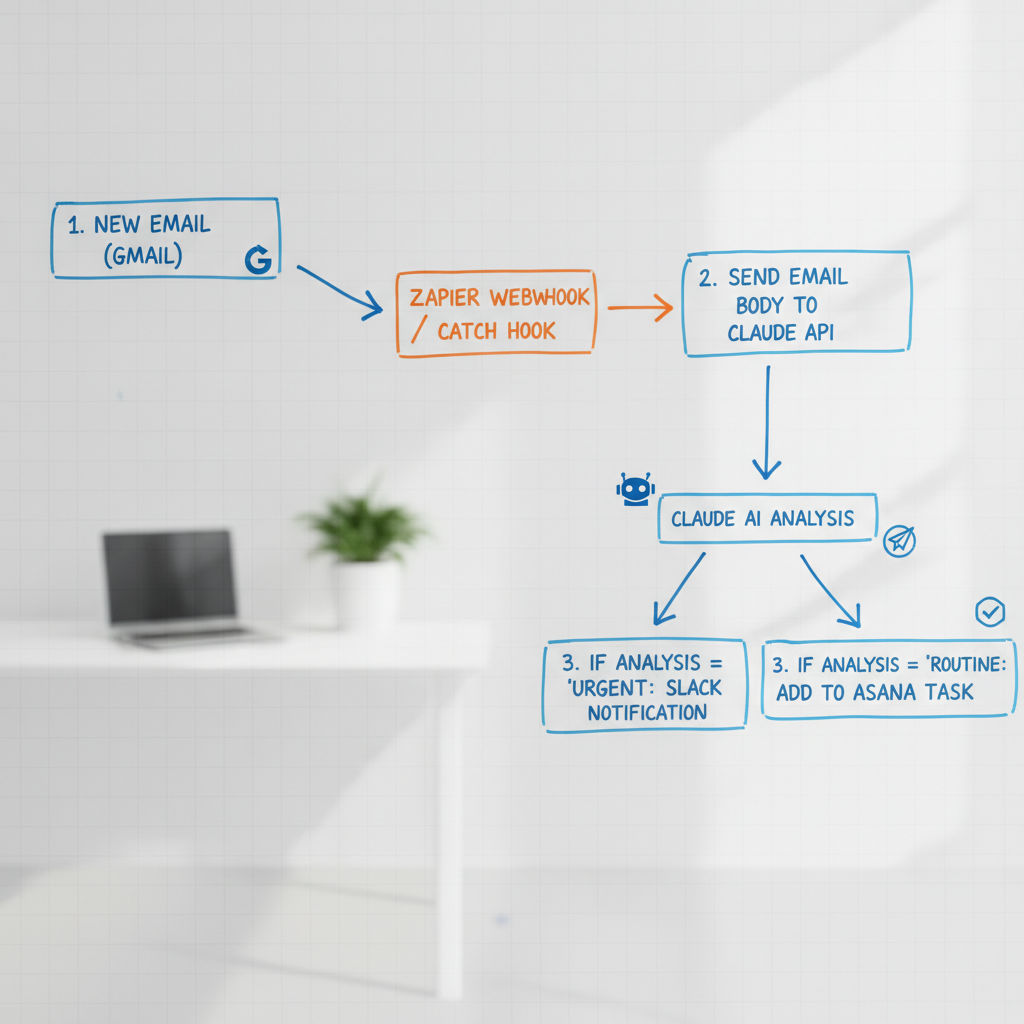
You keep your existing email app. You build background automations using Zapier or Make.com. When a new email hits your inbox, Zapier catches it via a webhook.
It sends the raw text to an AI model like Claude 3.5 Sonnet. The AI reads it and decides exactly what the email means.
Then it applies a specific label in Gmail. It can even draft a reply and save it in your Drafts folder. You just review the text and click send.
Tier 3: Hosted Python agents
You write a custom Python script using the Python email library. You host this script on a cloud server so it runs 24/7. This gives you absolute control over privacy and data retention.
You connect it directly to your internal Postgres databases. If a client emails asking for their past-due invoice, your script queries the database. It pulls the PDF from an AWS S3 bucket.
Then it emails that exact PDF back instantly. You never even see the request. It handles the entire transaction while you sleep.
Top AI email management tools in 2026
I tested the leading platforms. Here is how they stack up.
| Tool | Best for | Key AI feature | Monthly cost |
|---|---|---|---|
| Shortwave | Gmail power users | AI search history & auto-grouping | $8.50 |
| Superhuman | Founders & execs | Instant context-aware drafting | $30.00 |
| Zapier Central | Custom automations | Triggers background agent workflows | $20.00+ |
| SaneBox | Low-tech filtering | Moves junk to hidden folders | $7.00 |
Pros of AI email assistants
- Saves 5 to 10 hours a week on repetitive replies.
- Never forget to follow up on a cold lead.
- Summarizes 40-message threads into 3 bullet points.
- Automatically routes support tickets to the right team member.
Cons of AI email assistants
- Requires giving third-party apps full read access to your inbox.
- AI hallucinates facts in automated replies.
- Initial setup of custom workflows takes technical patience.
- Premium clients carry high monthly fees.
How to build a custom inbox sorter with Zapier and Claude
Smart clients offer simple setups. Custom systems give you absolute control. I prefer using Anthropic’s Claude for this.
It follows formatting instructions better than OpenAI models. Mastering this API is one of the best Claude AI skills you can learn this year. Here is the exact setup.
- Create the trigger: Go to Zapier. Create a new Zap. Choose Gmail as the app and New Email Matching Search as the event. Use the search string
is:inbox -from:me. This catches all incoming mail. It completely ignores replies you send to clients. - Add a text formatter: Emails contain massive HTML tables and inline CSS. Add Zapier’s Formatter step. Choose Text and then Remove HTML Tags. You strip this out to save API tokens. Claude processes the raw plain text perfectly.
- Connect Claude: Add an Anthropic step. Choose Create Message. Pass the cleaned text into the prompt. Set the AI temperature to 0.1 for strict, logical outputs.
- Route the output: Add a final Gmail step. Choose Add Label to Email. Map Claude’s exact text output to your specific Gmail label ID. You must create these labels in your Gmail account first.
Zapier offers a tool called Paths. You use Paths to build conditional logic into your email sorter. If Claude outputs URGENT, Zapier routes the workflow down Path A.
Path A sends an SMS text message to your phone. It forwards the raw email to your Slack channel. It pings your development team instantly.
If Claude outputs NEWSLETTER, Zapier routes down Path B. Path B marks the email as read immediately. It archives the thread. You never see the notification on your phone.
This conditional logic turns a basic inbox into a high-speed triage center. It protects your attention. You only see notifications for emails that actually matter.
The sorting prompt
Your prompt determines how well this works. You must force the AI to return a single word. Don’t let it write a polite response.
If it says ‘Sure, the category is URGENT,’ your Zapier automation breaks. You use strict schema matching. You give the AI a predefined list of allowed outputs.
You ban it from explaining its reasoning. This guarantees a clean data payload for your final Zapier step.
Exact AI prompt for email triage
You are an expert executive assistant. Analyze the following email.
Categorize it into exactly 1 of these 4 categories:
1. URGENT (Client needs immediate help, server down, urgent meeting)
2. NEWSLETTER (Marketing emails, automated reports, subscriptions)
3. INVOICE (Receipts, billing questions, payments)
4. GENERAL (Normal conversational emails, introductions)
Reply with ONLY the category word in all caps. Do not include any other text, punctuation, or explanation.
Email Content:
[INSERT ZAPIER TEXT HERE]
Because the output is strictly 1 word, your Zapier logic easily maps URGENT to the corresponding label ID in your Gmail account. This keeps your inbox pristine.
Automating draft replies
Sorting mail is phase 1. Phase 2 is drafting responses. Never let AI send emails directly to clients.
The risk of hallucinations remains extremely high. Instead, instruct the AI to save drafts. Extend your Make.com or Zapier workflow.
If the AI flags an email as GENERAL, pass the text to an OpenAI API node. Provide a system prompt with your personal writing style rules.
- Rule 1: Keep it under 4 sentences.
- Rule 2: Never use exclamation points.
- Rule 3: Start replies directly. Stop saying “I hope this email finds you well.”
Add a Gmail step to create a draft. Map the AI’s output to the body of the draft. Map the sender’s address to the To field.
Now you wake up to 15 pre-written drafts waiting for your review. You read them. You edit 1 or 2 words. You click send.
Hosting your own email agent
Zapier gets expensive fast. If you receive 200 emails a day, you’ll hit Zapier’s task limits in 1 week. You solve this by writing your own Python script.
This falls into the category of autonomous AI agents. You need 3 things to build this.
- A Google Cloud Console account. You need OAuth 2.0 credentials for the Gmail API.
- An Anthropic or OpenAI API key.
- A reliable Linux server to run the Python script continuously.
I write my script to connect directly to Google’s IMAP servers. The script runs an infinite loop. Every 5 minutes, it searches for messages flagged with the UNREAD tag.
When it finds a new message, it pulls the raw RFC822 payload. Email payloads arrive buried in base64 encoding. Your script decodes this text and strips the HTML.
Then it passes the clean text to the OpenAI API. I use the gpt-4o-mini model. It parses the email intent for fractions of a cent.
Finally, the script hits the Gmail API. It modifies the message labels. To keep costs low, I host my scripts on Hostinger.
It gives me root SSH access. I configure my Ubuntu environment exactly how I need it. I set up a systemd service to restart the script automatically if it crashes.
You use the requests library to hit the Gmail API endpoints. You structure a JSON payload containing the new label IDs. You send a POST request to https://gmail.googleapis.com/gmail/v1/users/me/messages/{id}/modify.
If the request succeeds, Google returns a 200 OK status. Your script logs the change. If the OAuth token expires, your script intercepts the 401 error.
It uses the refresh token to request a new access token from Google’s authorization server. It updates the local `.env` file automatically. This guarantees the script runs for months without manual intervention.
Pro tip: protect your API keys
Never hardcode your Gmail API credentials or OpenAI keys into your script. Store them in a secure `.env` file. If you accidentally push your code to a public GitHub repo, bots scrape your keys in seconds. They will run up $10,000 in API charges before you finish your coffee.
Privacy and security warnings
You must consider data privacy before you connect an AI to your inbox. By default, third-party apps read your personal correspondence. They ingest your bank alerts and client contracts.
Read the terms of service. Applications like Spark Mail and Superhuman clearly state how they encrypt your data. If you use the OpenAI API to build a custom tool, OpenAI’s enterprise policy forbids training on your API payload.
But if you paste emails manually into the free ChatGPT web interface, they ingest that text. They train future models on your private conversations.
You must toggle off chat history to prevent this. Check your Google Workspace Security settings. Review exactly which third-party apps hold read access to your account.
If you handle medical data or strict NDAs, you can’t use basic SaaS tools. You must build custom Python workflows. You route the data to local models running on your own hardware.
Connecting the dots
AI agents easily pull customer data from a database. They inject that exact data into an email draft. You can learn how to build an AI app with Google Sheets to act as a lightweight CRM.
Your email script grabs the sender’s address. It looks them up in your Google Sheet. It checks their past purchase history.
It sees they bought your premium course 2 months ago. It injects a personalized reference into the draft reply.
This removes the friction of daily communication. You act as an editor. You review the drafts and click send.
You bolt these systems together like Legos. You sand down the rough edges of your daily workflow. You reclaim 10 hours a week.
Frequently asked questions
Can AI automatically reply to my emails?
Yes. You configure Zapier or Python scripts to send replies immediately. I strongly advise against this.
Language models hallucinate facts. They agree to terms. They promise refunds to angry customers.
They send bizarre responses when confused by complex threads. Always force the AI to create a draft. You must click send.
Is it safe to give AI access to my inbox?
It depends on the specific tool. Paid enterprise APIs explicitly prohibit training on your data. Consumer tools ingest your text by default.
Review the privacy policy of any tier 1 smart client before granting them OAuth access to your Gmail account. Revoke access immediately if you stop using the app.
What is the best free AI email assistant?
Running language models costs money. Highly capable tools require a paid subscription. Shortwave offers a limited free tier.
If you want a completely free automated setup, you write a Python script. You use local open-source models like Llama 3. You host it on your own hardware.
Final thoughts
Managing email manually slows you down. Setting up an AI workflow takes 1 hour. It saves you days of wasted time over the course of a year.
Start simple. Sign up for a smart client. Build a basic Zapier sorting label. Test it for 1 week.
Once you trust the system, expand it. Add automatic drafting. Connect your customer databases. Reclaim your mornings.
Start building your Zapier automation

Written by Mangaleswaran
Mangaleswaran is the founder of AIZnap (aiznap.com) and a dedicated AI content creator. With a background in blogging and technology, he has a deep passion for making artificial intelligence accessible to everyone. He specializes in breaking down complex AI tools, tutorials, and updates into simple, practical guides that anyone can follow. Whether you are a complete beginner or someone looking to use AI to build websites, apps, or grow your online presence — Mangaleswaran's content is designed to help you take action with confidence.
View all posts