

Building software changed entirely in 2026. You no longer write syntax. You describe what you want and the machine writes the logic. Developers call this vibe coding.
Table of Contents
- ●What you will learn
- ●Why you should use Cursor over regular editors
- ●Step 1: Getting your environment ready
- ●Choosing your tech stack before prompting
- ●Step 2: Using Composer to lay the foundation
- ●How to avoid destroying your codebase
- ●Step 3: Sanding down the UI and adding features
- ●Step 4: Wiring up a real database
- ●Step 5: How to escape the AI looping bug
- ●Reading terminal errors like a pro
- ●Pros of this workflow
- ●Cons of this workflow
- ●Deploying your web app to the world
- ●The shift toward agents
- ●Frequently asked questions
- ●Can I build a commercial app with Cursor?
- ●Do I need to know how to code first?
- ●What happens when I hit my fast request limit?
But most beginners hit a wall. They download an AI editor and ask for a massive platform in one sentence. The AI spits out broken files. The app crashes, so they quit.
You need a system to bolt on features one by one. You must understand how the machine thinks.
This is exactly how to build a web app with Cursor AI from a blank folder to a finished product.
What you will learn
- How to set up your environment for AI coding.
- The exact prompts to generate a functional frontend.
- How to wire up a database without writing SQL.
- How to fix terminal errors when the AI gets stuck.
Why you should use Cursor over regular editors
Cursor is a fork of Visual Studio Code. It looks exactly like the editor you might already have installed. All your old extensions work.
But Cursor has AI baked directly into the core. It reads your entire project and knows how your files connect.
| Feature | Cursor AI | Standard Editors |
|---|---|---|
| Multi-file editing | Yes (via Composer) | No |
| Project context | Reads all folders | Reads open tabs only |
| Terminal debugging | 1-click auto fix | Manual copy/paste |
You can use ChatGPT to write code. But you must manually copy it, find the right file, and paste it into the exact spot. Cursor does this manual work for you.
Step 1: Getting your environment ready
Go to the official website and download the installer. It works on Mac, Windows, and Linux.
Once you open it, select an AI model. The free tier gives you a taste. But if you want to build a real app, pay the $20 monthly subscription for fast access to premium models.

Set your primary model to Claude 3.7. Right now, Anthropic builds better frontend code than OpenAI. It hallucinates less and formats Tailwind CSS better.
If you prefer keeping your data private, you can skip the cloud models. Check out my guide on how to run Gemma 4 locally on Mac to code entirely offline.
Choosing your tech stack before prompting
You must give the machine specific technologies. If you just ask for a website, it might use outdated HTML and jQuery.
We use Next.js because it handles routing automatically, so you don’t manually link pages. We use Tailwind CSS because it lets the AI style the app instantly without creating messy stylesheet files.
Claude 3.7 performs best with this specific stack. It trained heavily on modern React documentation and knows exactly how these tools snap together.
Step 2: Using Composer to lay the foundation
Create a new, empty folder on your desktop. Open it in the editor.
Now, hit Command+I on Mac or Ctrl+I on Windows to open Composer. This tool is your personal developer agent. It edits multiple files at once.
We’re going to build a habit tracker app. Type this exact prompt into the Composer window:
Initialize a new Next.js project using React and Tailwind CSS. Create a modern, dark-mode habit tracker dashboard. It needs a left sidebar for navigation. The main area should display a list of daily habits with checkboxes. Do not set up a real database yet. Save the habit data to local storage so it persists on refresh.
Hit enter. The machine starts writing files and generating the folder structure. It creates your layout, components, and CSS files. When it finishes, click Accept All.
Open the terminal inside the editor and run npm run dev. Open your browser. You now have a working frontend.
How to avoid destroying your codebase
AI writes code fast. It also deletes code fast. You will eventually approve a change that completely breaks your app.
You need a safety net. You need Git.
Cursor has a source control tab on the left sidebar. Before you ask the AI to build a massive new feature, go to that tab, type a message like “working habit list”, and hit Commit.
This creates a save state. If the machine hallucinates and breaks your app 10 minutes later, you don’t have to panic. Just click discard changes to revert your app exactly to the last save state.
Commit your code every time you get a feature working perfectly. It is a permanent undo button.
Step 3: Sanding down the UI and adding features
Your first draft will look okay. But you need to sand down the rough edges. Maybe the colors clash or the buttons look too large.
Don’t fix this manually. Highlight the code you want to change and press Command+K. This opens a small inline edit box.
Type: “Make these buttons smaller. Change the background color to a deep slate gray. Add a subtle hover effect.”
The AI rewrites just that section. You press enter to accept the change.
Right now, your buttons probably look flat and your margins feel cramped. You can use the AI as a professional designer.
Find a screenshot of an app you like, like Linear or Apple Notes. Drag and drop that screenshot directly into the Cursor chat box.
Type: “Analyze the design of this screenshot. Update my Tailwind classes to match this aesthetic. Pay attention to the border radiuses, the muted text colors, and the soft shadows.”
The AI reads the image and translates the visual style into actual CSS code. It updates your app in seconds, giving you a premium look without paying a designer.
Step 4: Wiring up a real database
Local storage works for prototypes, but real apps need a backend. We will wire up Supabase. It is an open-source alternative to Firebase.
We picked Supabase because it provides a Postgres database with an instant API. You don’t have to write server code.
Go to the Supabase dashboard. Create a table called ‘habits’. Add 3 columns: id, name, and completed. Set the data types to UUID, text, and boolean.
You need to tell the AI exactly how this table looks. Open Composer and give it very specific instructions.
Install the Supabase javascript client. Create a new file called supabase.js in a lib folder. Assume we have a Supabase table named 'habits' with columns id (uuid), name (text), and completed (boolean). Rewrite the habit list component. Remove the local storage logic. Make it fetch habits from this Supabase table. Add loading states while the data fetches.
When the machine knows your exact database schema, it writes perfect fetch requests. It won’t guess the column names or write broken SQL queries.
Step 5: How to escape the AI looping bug
Eventually, the code will break. You will get a red error in your terminal.
You click the Add to Chat button next to the error. The AI reads it and writes a fix. You run the fix, the error changes slightly, and you feed the new error back. The AI then reverts to the original code.
You are stuck in a loop. This happens when the AI loses context.
Stop using the same chat thread. Open a fresh Composer session and summarize the exact state of the app. Tell the machine what you already tried, and give it strict instructions to take a completely different approach.
Reading terminal errors like a pro
When your app crashes, look at the very top line of the error block. It usually names a specific file. For example, it might say HabitList.tsx:45.
This means the error lives on line 45 of that file. Open it, highlight line 45, and press Command+K. Ask the AI: “Why is this specific line throwing an undefined variable error?”
This focused approach forces the machine to look at the exact problem. If you just paste the whole error into the general chat, the AI might rewrite the entire file and break something else.
Pros of this workflow
- You ship products in days.
- You learn how systems connect visually.
- Terminal errors get fixed with 1 click.
Cons of this workflow
- You hit API limits fast on complex apps.
- Claude 3.7 can loop over the same bug.
- You still need basic logic skills to debug.
Deploying your web app to the world
Having an app on your localhost feels great. But you need to put it on the internet so actual users can test it.

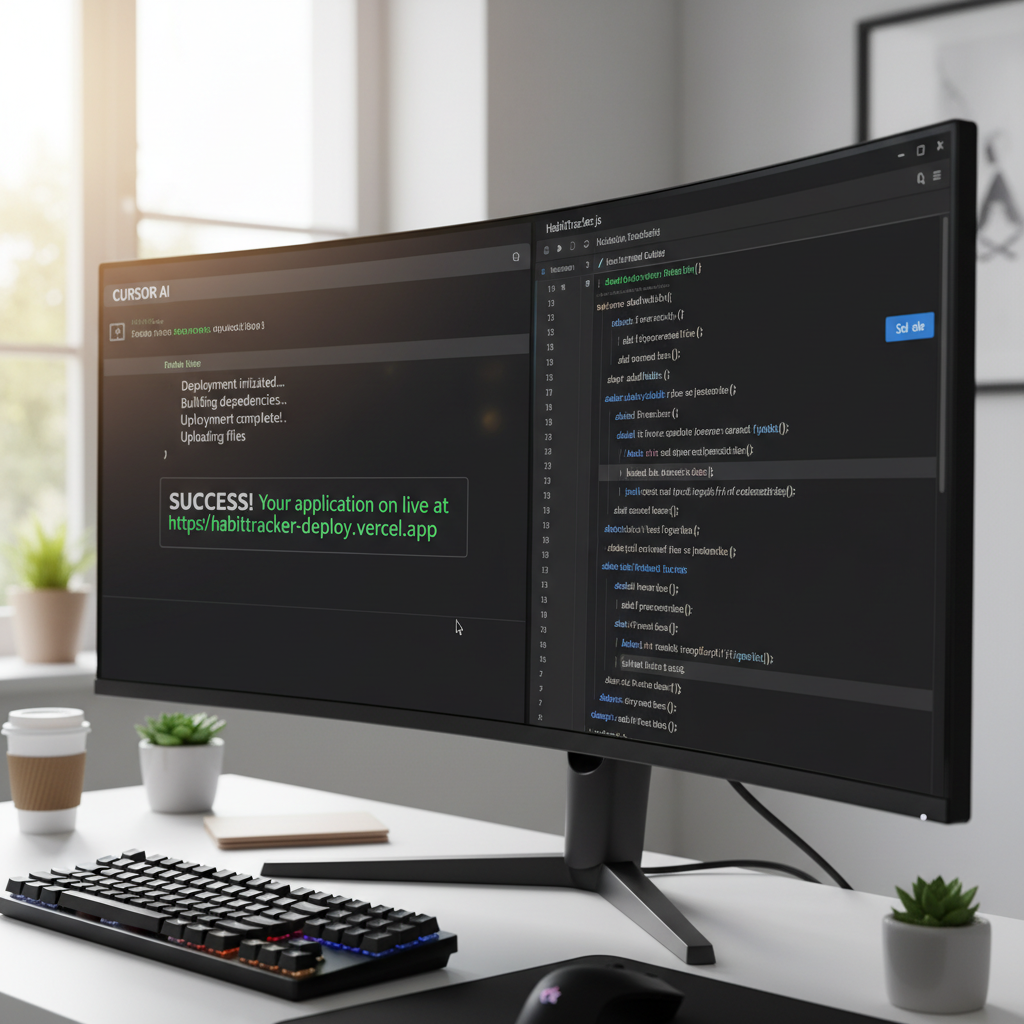
You can push your code to GitHub and connect it to a platform like Vercel. Vercel reads your Next.js code and hosts it instantly.
But Vercel gets expensive if your app grows. If you want to own your infrastructure, you can host it yourself. Read my full guide on how to deploy vibe coded apps for free using Dokploy. It walks you through setting up a cheap virtual private server.
If you built something very small, like a single-page HTML tool, you have even easier options. You can follow my tutorial on how to build and deploy a Google AI Studio website for a completely free hosting option.
The shift toward agents
Right now, you are the manager. You tell the code editor exactly what to do, hit accept, and debug the errors.
But the software industry moves fast. We are already seeing systems that do the debugging and testing for you. Check out the latest developments in AI agents. Tools like OpenAI Operator can take over your browser and verify if the app actually works from a user’s perspective.
Read The Ultimate Guide to Autonomous AI Agents in 2026 to see where this is heading. The skills you learn building with Cursor today prepare you to manage fully autonomous teams tomorrow.
Frequently asked questions
Can I build a commercial app with Cursor?
Yes. The code generated by the AI belongs to you. Hundreds of founders currently use it to build SaaS products and charge paying customers.
Do I need to know how to code first?
You don’t need to write syntax, but you must learn how to read logic. When the app breaks, you need basic reasoning skills to locate the file containing the error. Treat it like reading a map without knowing how to build the road.
What happens when I hit my fast request limit?
The editor slows down and drops you into a slow queue. Your prompts might take 30 seconds to generate instead of 3. You can wait for your monthly limit to reset or pay for additional fast requests in your dashboard.
Stop watching tutorials. Open a blank folder and start building.

Written by Mangaleswaran
Mangaleswaran is the founder of AIZnap (aiznap.com) and a dedicated AI content creator. With a background in blogging and technology, he has a deep passion for making artificial intelligence accessible to everyone. He specializes in breaking down complex AI tools, tutorials, and updates into simple, practical guides that anyone can follow. Whether you are a complete beginner or someone looking to use AI to build websites, apps, or grow your online presence — Mangaleswaran's content is designed to help you take action with confidence.
View all posts
1 thought on “How to Build a Web App with Cursor AI (No Coding Required)”